Tools
AI Productivity Tools That Are Actually Useful: A Practical Evaluation Guide
A practical framework for evaluating AI productivity tools by accuracy, privacy, permissions, workflow fit, cost, and human oversight.


The most useful AI productivity tool is not the one with the longest feature
list. It is the one that removes a specific bottleneck without creating more
review work, security risk, or subscriptions than it saves. This guide groups
reliable choices by job so you can test one improvement at a time.
Before choosing a tool
Define the task first: drafting, research, meeting notes, scheduling, or
knowledge retrieval. Then check whether the product supports your
data-handling requirements. Do not paste confidential client data,
credentials, medical records, or unpublished company information into a
service unless your organization has approved the account and its settings.
1. ChatGPT: flexible general assistance
ChatGPT is useful for turning rough notes into an outline, explaining
unfamiliar material, comparing options, analyzing files, and creating a first
draft. Its strength is flexibility rather than one fixed workflow.
Use it to accelerate a draft, then verify factual claims and sources. A
polished answer can still contain an error, and the output should not be
treated as independent evidence.
2. Claude: long-form reading and writing
Claude is a practical option for summarizing documents, refining prose,
exploring arguments, and working through long-form material. It can be
especially helpful when the task benefits from an iterative conversation about
structure and tone.
As with any model, review citations, calculations, and claims against the
original material. Upload only documents you are permitted to process.
3. Gemini: assistance inside Google’s ecosystem
Gemini is most compelling for people already working in Google products.
Depending on the plan and region, Gemini features may assist with writing,
summarizing, and organizing work across supported Google services.
Check the current feature and plan page before subscribing because
availability differs across personal, education, and business accounts.
4. Microsoft Copilot: assistance in Microsoft workflows
Microsoft Copilot is worth evaluating when Word, Excel, PowerPoint, Outlook,
and Teams are already central to your organization. The potential benefit
comes from working with existing files and business context, subject to the
account’s permissions and configuration.
It is not automatically the best value for an individual. Compare the specific
features included in your Microsoft plan with the tasks you perform every
week.
5. Notion AI: help inside a team workspace
Notion AI can reduce context switching when notes, projects, and internal
documentation already live in Notion. Typical uses include summarizing pages,
drafting updates, finding information, and reorganizing rough notes.
The quality of retrieval depends on the quality and permissions of the
workspace. AI cannot fix an undocumented process or an outdated source of
truth.
6. Perplexity: source-oriented web research
Perplexity is designed around research answers linked to web sources. It can
help discover terminology, identify primary sources, and build an initial
reading list faster than opening unrelated search results one by one.
Always open the cited pages. A citation can be real but fail to support the
exact sentence attached to it.
7. Granola or an approved meeting assistant
Meeting assistants can turn a transcript or notes into summaries and action
items. The useful question is not which one produces the longest summary, but
whether it integrates with your meeting workflow, clearly signals recording,
and respects participant consent and company policy.
Review action items before creating tasks. Names, owners, and deadlines are
precisely the details transcription systems can misinterpret.
A simple evaluation method
- Choose one recurring task that currently takes at least 20 minutes.
- Run the same task with and without the tool for one or two weeks.
- Measure total time, including prompting, correction, and fact-checking.
- Score the output for accuracy, usefulness, and privacy risk.
- Keep the tool only if the improvement is repeatable.
Avoid the subscription trap
Several products increasingly overlap in writing, search, summaries, and file
analysis. Start with the AI already included in software you pay for, or use a
free tier to test the workflow. One broadly useful assistant plus one
specialist tool is often easier to manage than six partially overlapping
subscriptions.
Verdict
For general work, begin with ChatGPT or Claude. Choose Gemini or Microsoft
Copilot when deep integration with your existing office ecosystem is the main
requirement. Add Notion AI for a Notion-centered knowledge base, Perplexity
for source discovery, or a meeting assistant only when that specialist
workflow justifies another service. The winning setup is the smallest one that
consistently saves time after review.
For multi-step workflows that can call tools and take approved actions, read
AI Agents for Productivity before deciding whether an agent is appropriate.
Official product pages
Practical example: comparing productivity tools before subscribing
Suppose a small team needs a shared task board and a weekly planning view. Build a simple test board with ten representative tasks, two owners, one recurring task, one attachment, and one dependency. Use the free tier of each shortlisted tool when possible.
- Recreate the same board and naming convention in every candidate.
- Ask two people to update tasks at the same time and note conflicts or confusing notifications.
- Export the board and check whether the exported data remains understandable outside the service.
- Review permission levels, guest access, retention, and account-recovery options.
- Estimate the cost at the team size you expect in twelve months, not just the introductory price.
Keep the notes from this test. They form a more defensible recommendation than a list of feature claims and make it easier to revisit the decision when pricing or product limits change.
A repeatable way to evaluate an AI tool
Use a small set of real but non-sensitive tasks rather than relying on a polished demo. Score the tool for factual accuracy, consistency, citation quality, editing effort, speed, export options, data retention, permission scope, and total cost. Repeat the test after updates because model behavior and product terms can change.
Evidence to keep
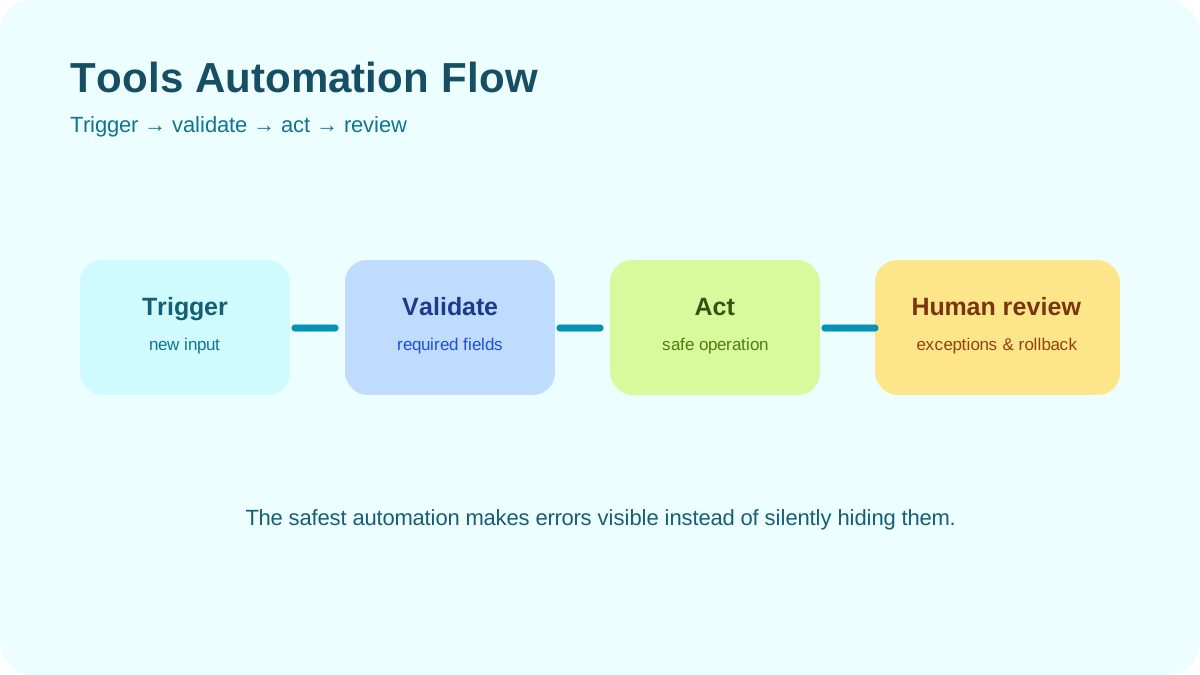
Save the test prompts, source files, outputs, corrections, and version date. This makes the decision auditable and prevents a single impressive result from hiding recurring errors. Keep a human approval step for publishing, sending messages, changing records, or making decisions that affect people.
Editorial review and limitations
Reviewed by Femica Maydinda Harend. This article separates documented behavior from editorial judgment and uses practical checks that readers can reproduce. Features, prices, interfaces, and compatibility may change; verify current details with the provider before making a consequential decision.