Tools
How to Build a Simple Digital Productivity System That Works
Build a maintainable digital productivity system with one capture point, clear tool roles, realistic planning, and a short weekly review.


A productivity system should make commitments easier to capture, choose, and complete. If maintaining the system becomes a second job, the structure is too complicated. A note app should fit the capture and retrieval routine you choose; use our note-taking software decision guide to compare that part of the system.
Quick answer
Use one trusted inbox, a short task list, a calendar for time-specific commitments, and a separate place for reference notes. Review the system regularly, remove duplicate tools, and automate only stable steps you already understand.
Best for: people whose tasks are scattered across email, chat, notes, calendars, and several productivity apps.
Why productivity systems become difficult to maintain
The common problem is not a missing feature. It is uncertainty: the same commitment exists in several places, the calendar is filled with tasks that are not appointments, and the task list contains items that are too vague to begin.
A useful system gives each tool a clear role. It should answer three questions quickly: What have I committed to? What matters next? Where is the information needed to do it?
Step 1: Audit the current workflow
Before installing another app, observe where work enters and where it gets lost. For a few normal workdays, note:
- where requests arrive;
- where you capture tasks;
- which reminders you ignore;
- which information is difficult to find;
- which tasks are repeatedly copied between tools;
- which interruptions cause you to lose the next action.
This is not a performance test. It is a map of friction. Look for repeated failure points rather than judging an unusual day.
Step 2: Give every tool one primary role
A simple setup can use four roles:
- Inbox: a temporary place for uncategorized commitments and ideas.
- Task list: actions you may choose and complete.
- Calendar: appointments, deadlines, and work that genuinely belongs at a specific time.
- Reference system: notes, files, procedures, and material that supports the work.
The same application can cover more than one role, but the role should remain obvious. Email can be an input channel without becoming the permanent task list. A calendar can protect focus time without becoming a wish list for every unfinished action.
Step 3: Create one trusted capture path
Choose the fastest available inbox that you can reach from the devices you use. It may be a task-manager inbox, a notes page, or a paper notebook. The important part is consistency.
Capture enough context to understand the item later. “Budget” is ambiguous; “Ask Maya which budget version the client approved” is actionable. Capture is temporary: the inbox must be processed, not allowed to become another archive.
Step 4: Turn vague work into visible next actions
Projects describe outcomes; tasks describe the next observable action. “Launch newsletter” is a project. “Confirm the sender address with the email provider” is a next action.
For each active project, identify the next action, the person responsible, and any real deadline. If work is waiting on someone else, record that explicitly instead of leaving the item mixed with actions you can perform.
Step 5: Keep the daily list small
A long backlog is useful for storage but poor for daily attention. Select a small set based on importance, available time, energy, and deadlines. Leave room for unexpected work.
Separate “must happen today” from “could do next.” If everything is marked urgent, the system cannot help you decide. Review the list when circumstances change rather than following an outdated morning plan at any cost.
Step 6: Use the calendar honestly
Place meetings, appointments, deadlines, and genuinely time-specific work on the calendar. Use focus blocks when protecting time is valuable, but do not assume every block will survive contact with the day.
When a focus block moves, update the task rather than duplicating it. Keep enough space between commitments for preparation, travel, and recovery from overruns.
Step 7: Run a regular review
The review keeps the system trustworthy. A practical review includes:
- emptying capture inboxes;
- checking the past and upcoming calendar;
- confirming the next action for active projects;
- following up on delegated work;
- closing or deleting stale commitments;
- choosing the most important outcomes for the next period.
The review does not need a universal duration or a particular day. It needs to happen often enough that you stop relying on memory.
Choose a small core stack
Select tools around the roles above rather than around feature lists. A task manager, calendar, notes application, and communication service are enough for many workflows. Some people can combine those roles into fewer tools; others need organization-approved systems.
Before adding an application, ask what existing tool it replaces, which friction it removes, how data will be exported, and who will maintain it. If the answers are unclear, delay the addition.
Automate only stable work
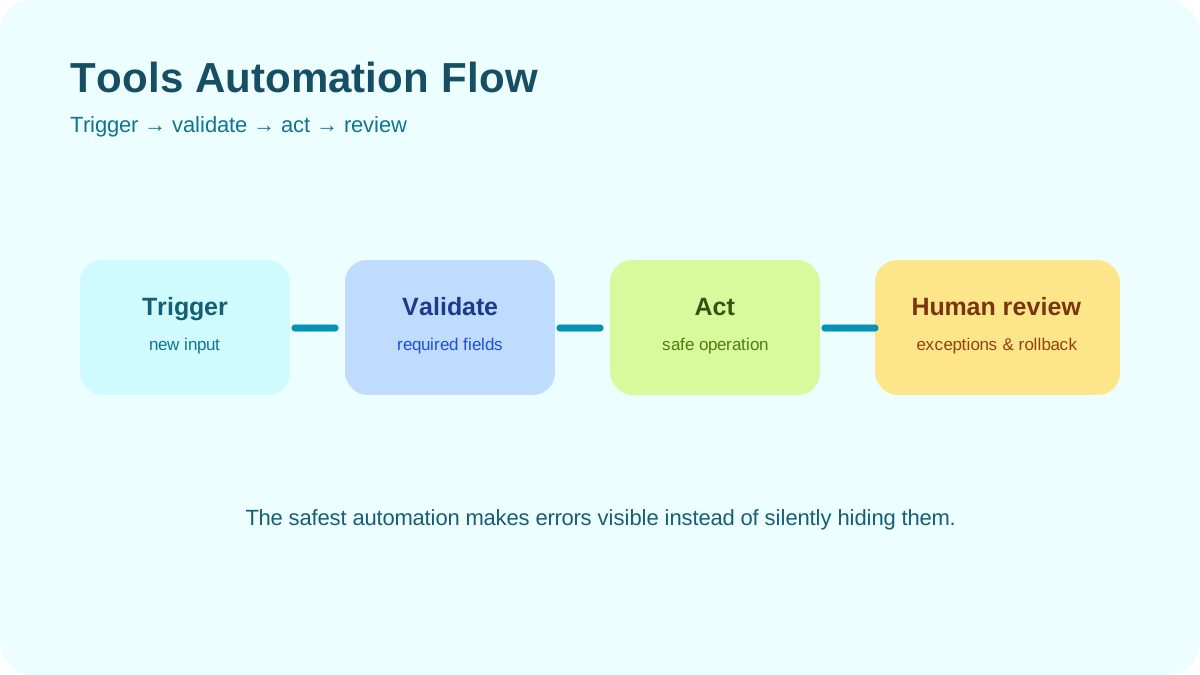
Automation is useful after a manual process is clear. Good first examples include creating a task from a labeled message, placing a recurring review on the calendar, or copying an approved form submission into the correct queue.
Keep consequential actions—sending external messages, deleting data, changing permissions, and financial activity—behind appropriate review. An automation that occasionally saves a click but frequently needs repair is not simplifying the system.
Stress-test without manufacturing chaos
Use the system during a normal busy period and record what breaks. Do not deliberately accept unnecessary meetings or unsafe workloads as a test. Instead, check whether you can recover after an interruption, find the current project state, and identify the next action without rebuilding the system.
Change one problem at a time. If capture is slow, improve capture. If the daily list is overwhelming, change selection. A complete migration makes it difficult to know which change helped.
Signs the system needs simplification
- You search several apps before finding a commitment.
- The same task exists in multiple places.
- Tags and fields require more attention than the work.
- The calendar repeatedly contains plans you never intended as appointments.
- You avoid the review because it has become too large.
- The system increases anxiety or hides urgent work.
Remove unused views, integrations, and categories before replacing the entire stack. Export important data and keep a rollback path during any migration.
A practical setup checklist
- List every current capture location and choose one primary inbox.
- Define the role of tasks, calendar, notes, and communication.
- Rewrite vague commitments as next actions.
- Select a realistic daily list instead of working directly from the backlog.
- Schedule a recurring review.
- Remove one duplicate tool or field.
- After the manual workflow is stable, automate one reversible step.
Editorial review and accountability
Written and reviewed by Femica Maydinda Harend. This framework is practical guidance, not a measured claim that one routine works for every person. Adapt it to workload, accessibility needs, organizational policy, and the tools you are required to use.
Official product guidance
- Microsoft Support: Focus in Windows
- Google Calendar Help: Create an Event
- Microsoft To Do Help Center
Practical example: building a weekly productivity system
Use one ordinary week as your test case. Capture incoming tasks in one place, reserve two short planning sessions, and define what “done†means for recurring work. Keep the system small enough to maintain when the week becomes busy.
- List commitments and assign each a next action.
- Group similar work into focused blocks instead of switching constantly.
- Review unfinished items at the end of the week and record why they moved.
- Archive completed work so the active list stays readable.
- Change one part of the system at a time and observe the result.
The goal is a repeatable habit, not a perfect dashboard. If the system requires more upkeep than the work it supports, simplify it.
Make the system resilient
A useful system should still work during a busy week. Give each tool one clear role: capture, calendar, tasks, notes, or communication. Observe your current workflow before changing apps, and keep employer or client data in an approved system. Review the inbox weekly, remove stale commitments, and simplify any view or automation that creates more maintenance than value.
Evidence that it is working
You should be able to find a commitment quickly, choose the next action, recover after an interruption, and complete a review in a short session. If the system requires constant reorganizing, reduce its complexity.
Editorial review and limitations
Reviewed by Femica Maydinda Harend. This article distinguishes documented behavior from editorial judgment and uses checks readers can reproduce. Features, prices, interfaces, and compatibility may change; verify current details before making consequential changes.