Guides
Why Your Laptop Keeps Freezing: 11 Practical Fixes and Safety Checks
Diagnose a freezing Windows laptop systematically, from heat, memory, storage, drivers, malware, updates, and software conflicts to hardware faults.

A frozen laptop can have many causes: one application may be stuck, Windows may be under memory or storage pressure, a driver may be unstable, or hardware may be failing. The safest way to find the cause is to protect your data, record the pattern, and change one thing at a time.
Quick answer
Back up important files first. Check whether the entire system or only one application freezes, then review heat, Task Manager, storage health, Windows and driver updates, malware, startup software, system files, power behavior, and hardware diagnostics. Use recovery options only after the less invasive checks.
Stop and seek repair: if the battery is swollen, the laptop smells electrical, liquid entered the device, the drive reports a serious health warning, or the system cannot remain stable long enough to copy important data.
1. Record what actually freezes
Before changing settings, write down what you see. Can the pointer move? Does Ctrl + Shift + Esc open Task Manager? Does audio continue? Does the problem occur on battery, while charging, after sleep, or only in one application?
Also note recent software, driver, peripheral, or Windows changes. A consistent trigger is more useful than a guess about the cause. If the laptop becomes responsive again, save open work and copy irreplaceable files before continuing.
2. Check heat and airflow
Place the laptop on a hard, flat surface and make sure the intake and exhaust vents are not blocked. A fan that grinds, stops under load, or runs at full speed while the case becomes unusually hot may indicate an airflow or cooling problem.
Shut the laptop down before cleaning exterior vents. Follow the manufacturer’s service instructions; opening the chassis, disconnecting a battery, or replacing thermal material may require tools and experience. Temperature limits differ by processor and laptop design, so use the device or component manufacturer’s specifications instead of a universal threshold.
3. Look for resource pressure in Task Manager
Open Task Manager and review the Processes and Performance pages. Watch CPU, Memory, and Disk while reproducing the problem. A process that remains unusually busy can be a useful lead, but a short spike does not prove that the process is defective.
If one application consumes increasing memory, update it, disable its extensions, or test a clean profile. If total memory remains close to full during normal work, close unused applications and reduce startup items before considering a hardware upgrade. Do not end unfamiliar Windows processes at random.
4. Check free space and storage health
Low free space can interfere with updates, temporary files, and virtual memory. Open Settings → System → Storage and review the categories before deleting anything. Storage Sense can remove selected temporary content, but confirm its settings first.
Back up immediately if the drive disappears, produces read errors, makes unusual mechanical noises, or a vendor diagnostic reports a serious warning. SMART values are vendor-specific; do not judge every SSD by a single universal number. Use the laptop or drive manufacturer’s diagnostic tool where available.
For file-system checks, begin with a read-only or online scan appropriate to the drive and follow Microsoft’s current documentation. Commands that schedule repairs or scan every sector can take a long time and should not be the first experiment on a failing drive.
5. Install Windows and manufacturer-approved updates
Check Settings → Windows Update, then restart. For firmware, chipset, graphics, audio, storage, and power-management drivers, use the support page for the exact laptop model. Do not use an unrelated driver package simply because the component name looks similar.
If freezing began immediately after a specific driver update, Device Manager may offer Roll Back Driver. Record the current version first. BIOS or UEFI updates need uninterrupted power and the exact package for the model; follow the manufacturer’s instructions rather than a generic flashing guide.
6. Scan for malware with Windows Security
Open Windows Security → Virus & threat protection, check that protection is active, and run an appropriate scan. An offline scan can help when persistent malware is suspected.
Do not identify malware only from a process name or high resource use. Legitimate Windows services can be busy during updates, indexing, or security scans. Review file location, publisher information, and Windows Security results before taking action.
7. Test for startup software conflicts
Disable non-essential startup applications through Task Manager, restart, and test. If that is not enough, Microsoft’s clean-boot procedure can start Windows with a reduced set of non-Microsoft services and startup programs.
Hide Microsoft services before disabling services in System Configuration. Re-enable items in small groups to isolate the conflict, and return the PC to normal startup afterward. On organization-managed devices, ask the administrator before changing security or management software.
8. Repair Windows system files
Microsoft’s current guidance runs Deployment Image Servicing and Management before System File Checker. Open Command Prompt as administrator and run:
DISM.exe /Online /Cleanup-image /Restorehealth
sfc /scannow
Allow each command to finish and read the result instead of assuming a successful repair. DISM may use Windows Update as a repair source. These tools repair Windows components; they do not fix defective memory, storage, cooling, or power hardware.
9. Compare battery and plugged-in behavior
Test with the manufacturer-approved power adapter and disconnect unnecessary peripherals. If freezes occur only with one charger, dock, USB device, or power mode, remove that variable and test again.
Restore the default Windows power plan before applying advanced tweaks. Disabling processor power states or forcing maximum performance can increase heat and battery use without addressing the cause. For a swollen or damaged battery, stop using the device and arrange safe service.
10. Run memory and manufacturer diagnostics
Windows Memory Diagnostic can perform a basic memory check after a restart. Many laptop manufacturers also provide pre-boot diagnostics for memory, storage, battery, fan, and system-board errors. Record any error code exactly.
A memory error can come from a module, slot, or system-board problem and should be investigated before normal use continues. Avoid probing live power circuits or disassembling a laptop unless you have the correct service documentation and electrical safety experience.
11. Use Windows recovery options carefully
If the problem began after a known system change, System Restore or removal of the relevant update may be appropriate. Windows also offers Startup Repair, reset, and reinstall options for different failure scenarios.
Read what each option preserves before proceeding and make a separate backup. A Windows reinstall can resolve software corruption, but it cannot repair failing hardware. If freezing continues after clean software tests or diagnostics report an error, professional hardware service is the safer next step.
What not to do
- Do not install bulk “driver updater” or registry-cleaner software as a first fix.
- Do not disable Windows security, diagnostic, or update services based on an unverified optimization guide.
- Do not flash firmware for another model.
- Do not repeatedly stress-test a drive that is reporting errors before backing it up.
- Do not change several drivers, services, and power settings at once; you will lose the ability to identify the cause.
Freezing versus a generally slow PC
A laptop that remains responsive but feels consistently slow needs a slightly different process. Use How to Fix a Slow Windows 11 PC for a focused performance checklist.
Practical verification checklist
- Back up important data.
- Record whether one app or the entire system freezes.
- Check airflow and compare battery, charger, and peripheral conditions.
- Observe CPU, memory, and disk behavior in Task Manager.
- Review storage health, Windows updates, and exact-model drivers.
- Scan with Windows Security and test a reduced startup environment.
- Run DISM before SFC according to Microsoft guidance.
- Use hardware diagnostics and preserve any error codes.
Editorial review and accountability
Written and reviewed by Femica Maydinda Harend. This guide provides general troubleshooting information. Back up important data and consult the device manufacturer or a qualified technician for electrical damage, battery swelling, firmware recovery, or hardware repair beyond your experience.
Primary sources and further reading
- Microsoft Support: Device Performance and Health in Windows Security
- Microsoft Support: Use DISM and System File Checker
- Microsoft Support: How to Perform a Clean Boot
- Microsoft Support: Troubleshoot Unexpected Restarts and Stop Codes
- Microsoft Support: Reinstall the Current Version of Windows
- Microsoft Support: Recovery Options in Windows
Diagnose before making changes
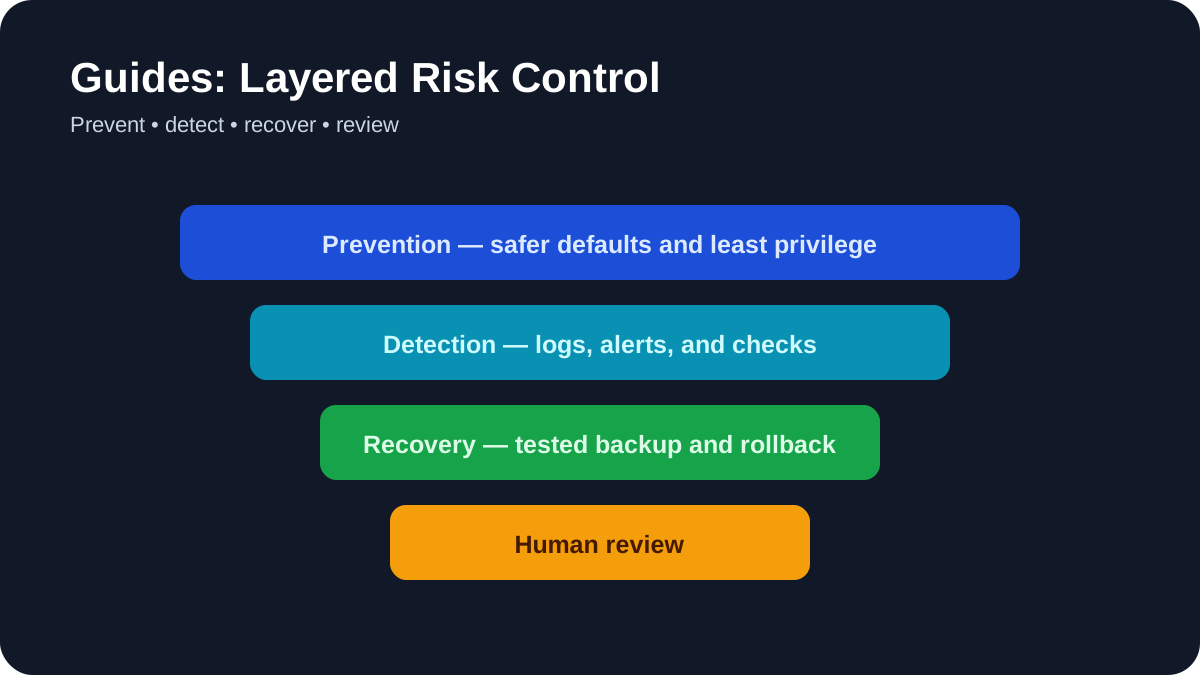
Write down whether one app or the whole system freezes, what workload was running, whether the laptop was plugged in, and any recent update or hardware change. Observe CPU, memory, disk, and temperature behavior before disabling services or installing cleaners. Change one variable at a time and keep a dated log so the result can be reproduced.
Hardware warning signs
Back up immediately and stop testing for a swollen battery, liquid damage, electrical smell, extreme heat, repeated drive errors, or a damaged charging port. These symptoms require qualified repair rather than more software tweaks.
Editorial review and limitations
Reviewed by Femica Maydinda Harend. This article distinguishes documented behavior from editorial judgment and uses checks readers can reproduce. Features, prices, interfaces, and compatibility may change; verify current details before making consequential changes.