Tutorials
Windows 11 Backup Monitoring with PowerShell and Google Sheets API
A practical guide to monitoring Windows 11 backups with PowerShell and Google Sheets while protecting credentials, logs, and recovery data.


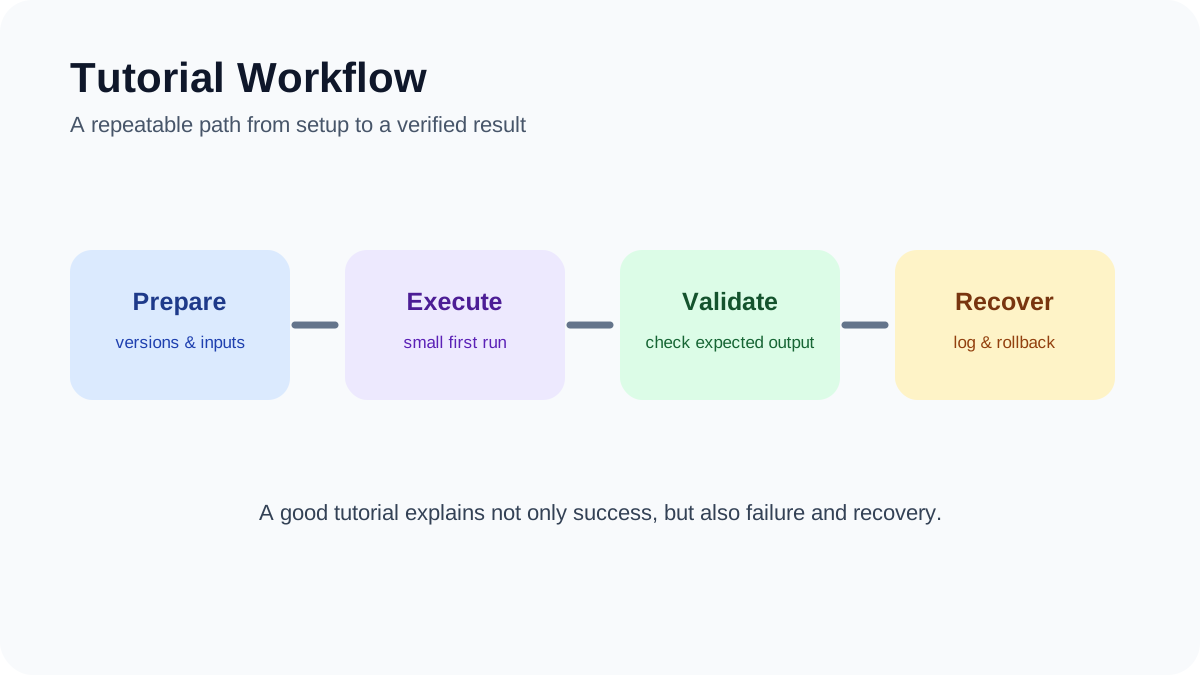
A backup is only useful if you know whether it actually ran.
Windows can copy files to another drive, a NAS, or cloud storage, but it is also useful to keep a simple record of each backup: when it ran, which files were processed, whether verification succeeded, and whether anything failed.
Google Sheets can work well as that backup log.
It should not be treated as the place where you store your actual backup files. Instead, PowerShell can perform or inspect your backup process and then send status information to a Google Sheet through the Google Sheets API.
This guide shows how to build a simple Windows 11 backup monitoring workflow with PowerShell and Google Sheets.
First: Google Sheets Is Not the Backup Destination
This distinction is important.
A real backup should create an independent copy of your important files.
That copy might live on:
- an external HDD or SSD;
- a NAS;
- another computer;
- approved cloud storage;
- a dedicated backup service.
Google Sheets can then record information about that process.
Example Architecture
Important Files
      ↓
Backup Script / Backup Tool
      ↓
External Drive / NAS / Cloud Storage
      ↓
Verification
      ↓
Google Sheets Backup Log
This gives you two different things:
- backup storage: where the recoverable copy exists;
- backup monitoring: where status and verification information is recorded.
What Should the Google Sheet Record?
A useful backup log can contain fields such as:
- timestamp;
- computer name;
- source path;
- destination path;
- file size;
- SHA-256 hash where useful;
- backup status;
- verification status;
- error message;
- duration.
This makes the Sheet a lightweight monitoring dashboard instead of pretending that spreadsheet rows are the backup itself.
What You Need
A basic setup requires:
- Windows 11;
- PowerShell;
- a Google account;
- a Google Cloud project;
- the Google Sheets API enabled;
- a spreadsheet for backup logs;
- a real backup destination.
WSL2 is not required for this workflow.
PowerShell alone is enough for file inspection, hashing, scheduled tasks, and REST API requests.
Do You Need PowerShell 7?
PowerShell 7 is a good choice for new automation projects, but it is inaccurate to say that Windows PowerShell 5.1 cannot use Invoke-RestMethod or handle JSON.
Invoke-RestMethod has existed since earlier Windows PowerShell releases and supports REST requests and JSON responses. :contentReference[oaicite:2]{index=2}
For a new script, using a current supported PowerShell release is still sensible because it receives newer fixes and features.
Step 1: Create the Google Sheet
Create a spreadsheet specifically for backup monitoring.
For example, create a sheet named:
BackupLogAdd these columns:
Timestamp
Hostname
SourcePath
DestinationPath
FileSizeBytes
SHA256
BackupStatus
VerificationStatus
DurationMs
Error
You can add more columns later if your workflow becomes more sophisticated.
Step 2: Create a Google Cloud Project
Open Google Cloud Console and create or select a project.
Enable:
Google Sheets API
You do not need to enable unrelated APIs simply because the workflow uses OAuth.
Step 3: Create OAuth Credentials
For a script that acts on behalf of a user, create an OAuth client appropriate for a desktop application.
Google’s current OAuth documentation supports the loopback IP flow for Windows desktop applications. A desktop application can listen on a local address such as:
http://127.0.0.1:RANDOM_PORTThe application then receives the authorization response locally. Google recommends using the system browser for this flow. :contentReference[oaicite:3]{index=3}
Do not use the old manual copy-and-paste OAuth flow. Google documents that method as deprecated and unsupported. :contentReference[oaicite:4]{index=4}
Service Account or User OAuth?
The draft version of this guide said service accounts must never be used. That is too absolute.
Both approaches can be valid.
User OAuth
This is useful when:
- the Sheet belongs to a specific user;
- the script should operate using that user’s authorization;
- interactive authorization is acceptable during initial setup.
Service Account
This may be appropriate for controlled server-side or organizational automation where the spreadsheet is explicitly shared with the service account.
The correct choice depends on ownership, deployment architecture, and access-control requirements.
Step 4: Use the Minimum OAuth Scope
If the script only needs to read and write spreadsheet content, the Google Sheets scope is typically sufficient:
https://www.googleapis.com/auth/spreadsheetsAvoid requesting broader Google Drive or account scopes unless your workflow actually needs them.
Step 5: Create a Real Backup Before Logging Anything
For demonstration purposes, imagine we want to copy:
C:\Users\YourName\Documents\Researchto:
E:\Backups\ResearchYou could use an existing backup tool or a Windows utility such as Robocopy.
For example:
robocopy "C:\Users\YourName\Documents\Research" "E:\Backups\Research" /E /COPY:DAT /DCOPY:TDo not blindly copy this command into an important production workflow.
Read the current Robocopy documentation and test against disposable files first, especially before adding options that delete or mirror destination content.
Step 6: Collect Backup Metadata With PowerShell
After the backup runs, PowerShell can collect information that will later be sent to Google Sheets.
For a single file:
$sourcePath = "C:\Users\YourName\Documents\example.txt"

$file = Get-Item $sourcePath

$hash = Get-FileHash `
    -Path $sourcePath `
    -Algorithm SHA256

$row = @(
    (Get-Date).ToUniversalTime().ToString("o"),
    $env:COMPUTERNAME,
    $sourcePath,
    "E:\Backups\example.txt",
    $file.Length,
    $hash.Hash,
    "Success",
    "Pending",
    0,
    ""
)
This creates metadata.
It does not create the backup itself.
Step 7: Verify the Backup
Logging Success simply because the copy command finished is not enough for important files.
You can perform a basic verification by comparing source and destination hashes.
$sourceHash = (Get-FileHash `
    -Path $sourcePath `
    -Algorithm SHA256).Hash

$destinationHash = (Get-FileHash `
    -Path $destinationPath `
    -Algorithm SHA256).Hash

if ($sourceHash -eq $destinationHash) {
    $verification = "Verified"
}
else {
    $verification = "Mismatch"
}
A matching hash indicates that the two files contained the same bytes when they were hashed.
It does not prove that your entire backup strategy is healthy or that the storage device will remain reliable indefinitely.
Step 8: Append a Row to Google Sheets
The Google Sheets API supports appending values to the end of an existing table using:
spreadsheets.values.appendThe request body contains a two-dimensional values array. :contentReference[oaicite:5]{index=5}
A simplified PowerShell request can look like:
$spreadsheetId = "YOUR_SPREADSHEET_ID"
$range = "BackupLog!A:J"

$body = @{
    values = @(
        @(
            (Get-Date).ToUniversalTime().ToString("o"),
            $env:COMPUTERNAME,
            $sourcePath,
            $destinationPath,
            $file.Length,
            $sourceHash,
            "Success",
            $verification,
            $durationMs,
            ""
        )
    )
} | ConvertTo-Json -Depth 5

$headers = @{
    Authorization = "Bearer $accessToken"
}

$uri = "https://sheets.googleapis.com/v4/spreadsheets/$spreadsheetId/values/$range`:append?valueInputOption=RAW&insertDataOption=INSERT_ROWS"

Invoke-RestMethod `
    -Uri $uri `
    -Method Post `
    -Headers $headers `
    -ContentType "application/json" `
    -Body $body
Google currently documents INSERT_ROWS as an option when appending values to a table. :contentReference[oaicite:6]{index=6}
Why Use RAW Instead of USER_ENTERED?
For a machine-generated audit log, RAW is often easier to reason about.
It reduces the chance that Google Sheets interprets values as formulas, dates, percentages, or other user-entered formats.
You can still format the columns in the spreadsheet itself.
Step 9: Handle OAuth Tokens Correctly
OAuth access tokens are temporary.
A long-running scheduled workflow needs a supported refresh process rather than assuming one access token will work indefinitely.
Google’s desktop OAuth flow can return both access and refresh tokens after the authorization code is exchanged. :contentReference[oaicite:7]{index=7}
Store refresh credentials securely and do not:
- commit them to Git;
- embed them directly in published scripts;
- store them in the Google Sheet;
- send them to logging or notification systems.
Important Correction About Refresh Tokens
A refresh token is not normally invalidated simply because you used it once.
The original draft’s statement that Google invalidates a refresh token after its first use was incorrect.
A refresh token may become invalid for other reasons, such as revocation or account/security changes.
Step 10: Protect Local Credentials
Credential protection on Windows can be implemented in several ways depending on the scale and environment.
Possible options include:
- Windows-protected credential storage;
- Windows Credential Manager;
- PowerShell SecretManagement;
- an enterprise secrets manager;
- a protected configuration owned by the scheduled-task identity.
Avoid presenting one encryption snippet as universally secure without explaining its certificate, identity, and recovery requirements.
Step 11: Schedule the Script
Once the script works manually, schedule it with Windows Task Scheduler.
You can create a basic task through the Task Scheduler GUI or PowerShell.
Example:
$action = New-ScheduledTaskAction `
    -Execute "pwsh.exe" `
    -Argument '-NoProfile -File "C:\Scripts\backup-monitor.ps1"'

$trigger = New-ScheduledTaskTrigger `
    -Daily `
    -At 2:00AM

$settings = New-ScheduledTaskSettingsSet `
    -StartWhenAvailable

Register-ScheduledTask `
    -TaskName "Backup Monitor" `
    -Action $action `
    -Trigger $trigger `
    -Settings $settings
Test the task manually after creating it.
Do not assume a scheduled task works simply because registration succeeded.
Step 12: Keep a Local Log Too
Google Sheets should not be the only place where errors are recorded.
If internet access is unavailable, the API cannot receive the failure log.
Maintain a local log such as:
C:\ProgramData\BackupMonitor\backup.logRecord information such as:
- start time;
- end time;
- backup exit code;
- verification result;
- Google API result;
- errors.
Step 13: Queue Google Sheets Updates When Offline
A useful improvement is to separate the backup operation from remote logging.
For example:
Backup completes
      ↓
Write event to local JSON queue
      ↓
Internet available?
   ↙             ↘
 No              Yes
 ↓                ↓
Keep queue    Send to Sheets
                  ↓
             Remove queued item
This prevents a Google API outage from causing the actual backup process to fail.
Step 14: Watch for Google Sheets API Quotas
Do not send one API request for every individual file if thousands of files are involved.
Batch or summarize where practical.
As of the current Google documentation, Sheets API quotas include:
- 300 read requests per minute per project;
- 60 read requests per minute per user per project;
- 300 write requests per minute per project;
- 60 write requests per minute per user per project.
Google also states that requests within the per-minute quota currently have no daily request limit, although its pricing documentation notes that the model may evolve. :contentReference[oaicite:8]{index=8}
Handle HTTP 429 Correctly
If quota is exceeded, Google recommends exponential backoff rather than immediately retrying in a tight loop. :contentReference[oaicite:9]{index=9}
The retry logic should also stop after a reasonable number of attempts.
Step 15: Do Not Log Every Full File Path by Default
File paths themselves can reveal sensitive information.
For example:
C:\Users\Alice\Clients\Acquisition-Target-X\Legal\...could reveal confidential information even though the actual document was never uploaded.
Consider logging:
- a relative path;
- a project identifier;
- a sanitized label;
- only the parent category.
Choose the minimum metadata required for monitoring.
Step 16: Be Careful With Hashes
SHA-256 hashes are useful for file-integrity comparison.
But calling hashes inherently harmless or anonymous is too broad.
A hash can still reveal useful information when an attacker already possesses candidate files and compares their hashes.
Treat hashes as operational metadata and apply appropriate access control.
Step 17: Create a Simple Dashboard
Once the log contains enough entries, Google Sheets can display useful status information.
Examples:
- last successful backup;
- failed backup count;
- unverified files;
- last run by computer;
- backup duration trends.
Conditional formatting can highlight failures without adding more automation infrastructure.
Step 18: Alert Only When Something Needs Attention
Instead of notifying users after every successful run, alert on meaningful conditions.
For example:
- backup failed;
- destination is unavailable;
- hash verification failed;
- backup has not succeeded for a defined period;
- Google logging has been offline for several runs.
This reduces alert fatigue.
Step 19: Separate Backup Failure From Logging Failure
These are different problems.
For example:
Backup: SUCCESS
Google Sheets Log: FAILED
does not mean your files were not backed up.
Likewise:
Backup: FAILED
Google Sheets Log: SUCCESS
means the monitoring system worked—but the backup itself did not.
Store both statuses separately.
Step 20: Test Recovery
A monitoring dashboard can tell you that files were copied and hashes matched.
It still does not prove that you can recover your data during a real failure.
Periodically restore a non-critical file from the backup destination.
Confirm that:
- the file exists;
- you can access it;
- it opens correctly;
- you understand the recovery process.
Recovery testing is more valuable than a spreadsheet filled with green “Success” rows.
A Better Overall Architecture
Windows Files
     ↓
Backup Engine
     ↓
Independent Backup Destination
     ↓
Verification
     ↓
Local Audit Log
     ↓
Queue
     ↓
Google Sheets API
     ↓
Monitoring Dashboard / Alerts
This architecture avoids making Google Sheets a dependency for the actual backup.
What Google Sheets Is Good At Here
- small-scale status tracking;
- human-readable logs;
- simple dashboards;
- collaborative monitoring;
- lightweight alerting workflows;
- proof that scheduled jobs are running.
What Google Sheets Is Not Good At
- storing actual backup files;
- massive machine telemetry;
- high-frequency logging;
- long-term enterprise log retention;
- replacing a SIEM;
- replacing dedicated backup software.
If the project grows beyond a few machines or produces large amounts of telemetry, a proper logging database or monitoring platform may become a better fit.
Security Checklist
- Use a dedicated spreadsheet.
- Restrict sharing.
- Request only required OAuth scopes.
- Protect refresh credentials.
- Never store passwords or API keys in the Sheet.
- Minimize file-path information.
- Keep local logs protected.
- Do not make backup success depend on Google Sheets availability.
- Review who can access the Sheet periodically.
How This Guide Was Prepared
This guide deliberately separates backup storage from backup monitoring.
Google Sheets is used as a lightweight status and metadata ledger, while the actual backup must be written to an independent storage destination.
The implementation is based on standard Windows scripting concepts and Google’s documented Sheets API and OAuth mechanisms.
API quotas, OAuth behavior, PowerShell versions, Windows features, and Google Cloud settings can change over time. Before deploying the workflow, verify current official documentation and test it using non-critical data.
This guide also avoids presenting the workflow as automatically compliant with GDPR, HIPAA, or any other regulatory framework. Compliance depends on the data, organization, access model, agreements, jurisdiction, and complete system architecture.
Frequently Asked Questions
Can Google Sheets back up my Windows files?
Not in the architecture described here.
The actual files should be copied to external storage, a NAS, cloud storage, or another appropriate backup destination.
Google Sheets records information about that backup.
Can I log an entire folder?
Yes, but logging every individual file may create unnecessary volume.
For large folders, it may be better to record one summary row containing:
- number of files;
- total size;
- backup result;
- verification result;
- duration.
Do I need PowerShell 7?
Not necessarily.
Modern PowerShell is recommended for new projects, but Windows PowerShell 5.1 already supports REST requests and JSON processing. :contentReference[oaicite:10]{index=10}
Do I need WSL2?
No.
This workflow can be built entirely with Windows and PowerShell.
Can I use a service account?
Potentially.
A service account can be appropriate for controlled automation if the spreadsheet and permission model are designed for it.
User OAuth is often simpler for a script operating directly on behalf of one user.
Is Google Sheets suitable for hundreds of computers?
It may become awkward at larger scale.
For many endpoints or high-frequency telemetry, consider a proper database, centralized logging system, or monitoring platform instead.
Does a successful SHA-256 comparison prove my backup is safe?
No.
It shows that the compared files contained identical data at the time of hashing.
You should still maintain independent copies and periodically test recovery.
Is this automatically GDPR or HIPAA compliant?
No.
No individual script, API, spreadsheet configuration, or encryption feature automatically establishes compliance.
Regulated environments require broader legal, technical, organizational, and contractual controls.
Final Takeaway
The most important improvement to this project is conceptual:
Do not use Google Sheets as your backup. Use it to monitor your backup.
Let Windows or another backup system create the recoverable copy. Then let PowerShell collect useful metadata, verify results, write a local audit trail, and send a concise status record to Google Sheets.
That gives you a transparent workflow without confusing monitoring with data protection.
Start with one folder and one backup destination. Verify that you can restore a file. Add Google Sheets monitoring afterward. Once that works reliably, automate scheduling, alerts, retries, and multi-machine reporting.
Recommended for you 👇
Practical verification and limits
Use least-privilege credentials, never place secrets in scripts or sheets, log failures clearly, and verify that a reported backup can actually be restored.
Editorial review and limitations
Reviewed by Femica Maydinda Harend. This guidance favors documented, reversible checks. Product APIs, permissions, and policies can change; verify current details before acting.