Tutorials
Notion, n8n, Windows Backup, and Google Sheets: A Practical Automation Workflow
A practical workflow for connecting Notion, n8n, Windows backups, and Google Sheets with monitoring, permissions, testing, and human oversight.

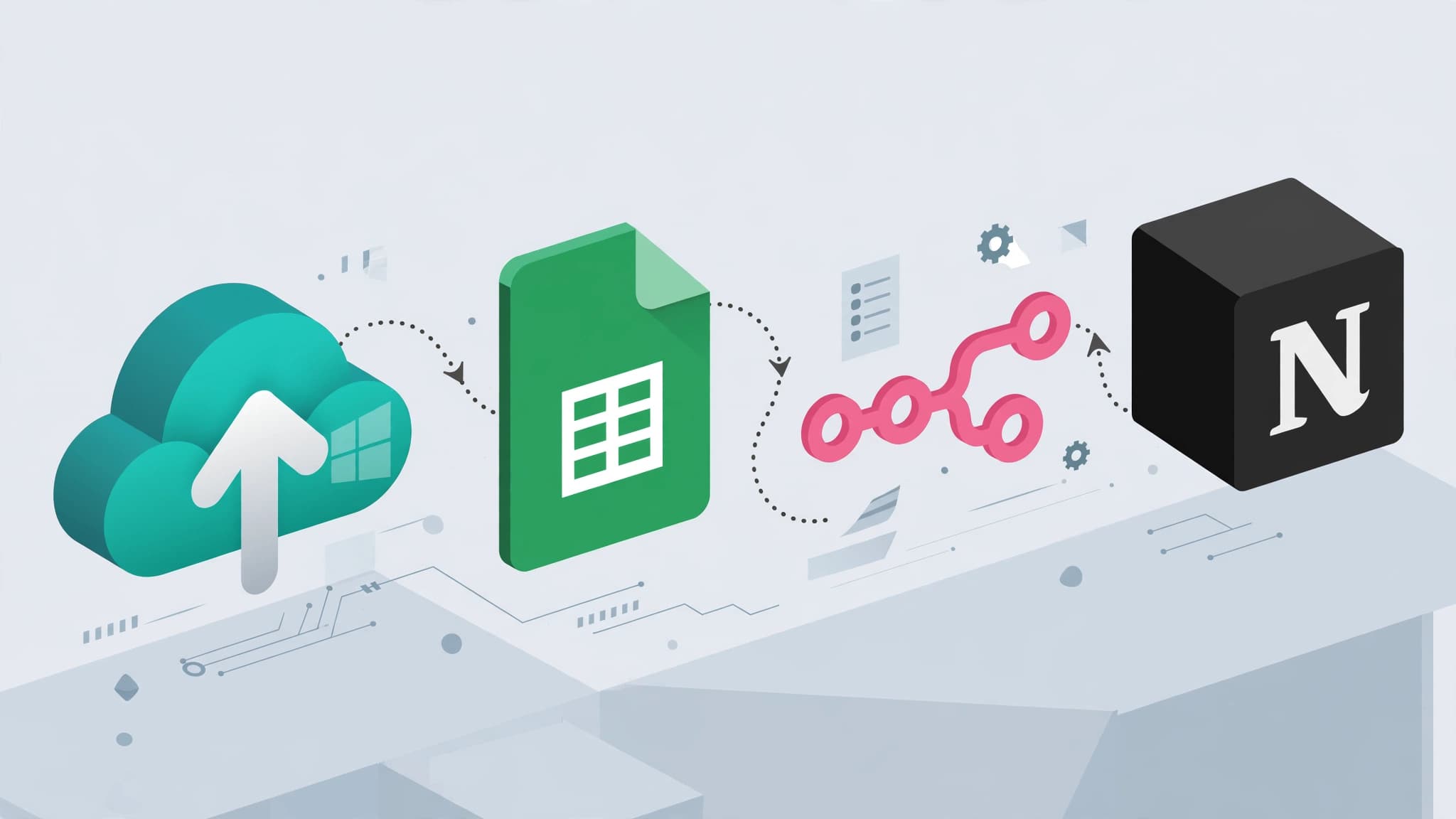
Notion, Windows, n8n, and Google Sheets can work together to create a useful automation stack—but they should not all be treated as the same thing.
Notion can hold structured project data. n8n can orchestrate workflows. Windows can store independent file backups. Google Sheets can provide a simple human-readable activity log.
The important part is designing clear boundaries between those roles.
This guide shows how to build a practical Notion backup and activity-log workflow with n8n on Windows without confusing synchronization, export, logging, and backup.
What This Workflow Actually Does
The architecture looks like this:
Notion
   ↓
n8n detects or polls relevant records
   ↓
Record metadata / workflow event
   ↓
Optional export or local artifact process
   ↓
Windows backup destination
   ↓
Google Sheets activity log
Each layer has a different responsibility.
- Notion: stores the working information.
- n8n: coordinates actions between systems.
- Windows: stores local or network backup copies where applicable.
- Google Sheets: records activity and backup status.
Important: A Sync Is Not Automatically a Backup
If a Notion record is copied into another live system and changes in both places, that is synchronization.
A backup should give you an independent copy that can be recovered after accidental deletion, corruption, account loss, or another failure.
For example:
Notion → Google Sheetsis primarily data synchronization or logging.
By contrast:
Exported Files → External Drive / NASis closer to a traditional backup.
What Windows File History Can Protect
Windows File History can automatically protect supported personal files by saving copies to an external drive or network location. Microsoft documents it as a file-versioning and recovery feature for personal files. :contentReference[oaicite:1]{index=1}
That makes it useful for local files generated by your workflow.
However, File History does not directly back up a Notion workspace simply because the Notion desktop application is installed.
You first need a real local file or export that Windows can protect.
The Critical Notion Limitation
Notion’s API is useful for reading and updating structured workspace content that an integration can access.
But you should not design a workflow around the assumption that the API provides a simple one-command equivalent of:
Export this Notion page exactly as Markdown/PDFfor every workspace object.
If you need archival copies, distinguish between:
- data retrieved through the Notion API;
- workspace or page exports provided through Notion’s export functionality;
- third-party exporters.
Third-party exporters introduce another dependency and should not be presented as native Notion or n8n functionality.
A Safer First Version
Instead of beginning with a complicated page-export system, start by automating a structured Notion database.
For example, imagine a Notion database containing:
- Project ID;
- Project Name;
- Status;
- Owner;
- Last Edited;
- Backup Required;
- Local Folder.
n8n can periodically inspect those records and decide whether another action is required.
Step 1: Decide What Notion Is Responsible For
Do not make Notion responsible for everything.
For example:
| Information | System of Record |
|---|---|
| Project status | Notion |
| Actual project files | Windows / file storage |
| Backup copies | External drive / NAS / backup storage |
| Automation status | Google Sheets or local log |
This avoids turning one application into an unreliable source of truth for everything.
Step 2: Create a Stable Project ID
Every monitored Notion record should have a stable identifier.
For example:
PROJECT-001
PROJECT-002
PROJECT-003
Do not rely only on titles such as:
Website Redesignbecause titles can change or be duplicated.
Step 3: Connect Notion to n8n
Create a Notion integration and grant it access only to the database or pages the workflow actually needs.
Apply least privilege.
If the workflow only reads project status, it should not automatically receive broad write access to unrelated workspace content.
Then configure the corresponding Notion credential in n8n using the current authentication options supported by your n8n version.
Step 4: Detect Relevant Notion Changes
The simplest architecture is scheduled polling.
Schedule Trigger
      ↓
Read Notion Records
      ↓
Filter Recently Changed Records
A schedule is often easier to understand and debug than event-driven infrastructure.
Store a checkpoint such as the last successful synchronization timestamp so the workflow can identify records that changed since the previous successful run.
Do Not Use “Now Minus Five Minutes” as Your Only State
Suppose the computer is turned off for two hours.
If the workflow only asks:
Give me records changed in the last five minutesthen changes made during the outage may be missed.
A better pattern is:
Last Successful Checkpoint
        ↓
Fetch Changes After Checkpoint
        ↓
Process Successfully
        ↓
Save New Checkpoint
Step 5: Separate Notion Data From Local Files
A Notion project may refer to local files such as:
C:\Projects\Client-AThe workflow should treat that path as a reference to another data source.
Notion itself does not make that folder backed up.
Step 6: Run the Backup Independently
For local Windows folders, the actual backup operation can use:
- File History;
- Robocopy;
- dedicated backup software;
- NAS backup software;
- another approved backup system.
If you use Robocopy, keep destructive options out of the beginner workflow.
A simple example might be:
robocopy "C:\Projects\Client-A" "E:\Backups\Client-A" /E /COPY:DATTest commands using disposable files before applying them to valuable data.
Step 7: Do Not Make the Backup Depend on Notion Availability
One subtle design problem is:
Notion unavailable → no backup happensThat is not ideal if the local files are important.
The file backup itself should ideally run according to its own schedule.
Notion can influence additional workflow actions, but the core backup should remain reliable even if Notion is temporarily unavailable.
Step 8: Log Backup Results Separately
After the backup operation completes, create an event such as:
{
  "project_id": "PROJECT-001",
  "backup_time": "2026-09-02T02:10:00Z",
  "source": "C:\\Projects\\Client-A",
  "destination": "E:\\Backups\\Client-A",
  "status": "Success",
  "verification": "Pending"
}
That event can then be sent to Google Sheets.
Step 9: Create the Google Sheets Activity Log
Create columns such as:
Timestamp
Project ID
Event
Source
Destination
Status
Verification
Duration
Error
Examples of events:
- Notion Record Changed;
- Backup Started;
- Backup Completed;
- Verification Passed;
- Verification Failed;
- Logging Failed.
Step 10: Keep Backup Status and Logging Status Separate
This distinction is essential.
Backup: SUCCESS
Google Sheets Log: FAILED
means your backup may still be safe.
Conversely:
Backup: FAILED
Google Sheets Log: SUCCESS
means the monitoring system worked but the actual backup did not.
Do not collapse those two states into one generic Status field.
Step 11: Keep a Local Queue
If Google Sheets or the network is unavailable, the workflow should not lose the event.
A practical architecture is:
Backup Result
    ↓
Local JSON / SQLite Queue
    ↓
Can Google Sheets Be Reached?
  ↙                 ↘
No                  Yes
↓                    ↓
Keep Event        Send Event
                     ↓
                 Mark Delivered
This makes remote logging eventually consistent without making it critical to the backup itself.
Step 12: Verify the Backup
A successful copy command does not necessarily mean recovery will work.
Possible verification methods include:
- checking that the destination file exists;
- comparing source and destination file sizes;
- comparing hashes for selected files;
- periodically restoring a test file.
A recovery test is usually more meaningful than simply having hundreds of “Success” rows in Google Sheets.
Step 13: Let Windows File History Protect Local Exports
If your workflow creates local Markdown, CSV, JSON, or other export artifacts, those files can become candidates for File History.
Microsoft states that File History can save versions of personal files to an external drive or network location and later restore earlier versions. :contentReference[oaicite:2]{index=2}
This is different from assuming File History directly understands Notion’s cloud data model.
Step 14: Avoid Backing Up the Notion Desktop Cache as Your Primary Strategy
A desktop application’s local cache should not automatically be treated as a documented backup format.
Internal cache structures may change between application versions and may not provide a clean recovery path.
If recoverability matters, use an intentional export or API-based archive format rather than relying on undocumented cache files.
Step 15: Be Careful With Execute-Command Workflows
If n8n runs local commands or PowerShell scripts, those commands execute in the environment where n8n itself is running.
This matters especially with Docker or remote servers.
For example:
n8n running on remote Linux server
        ↓
Execute local command
        ↓
Command runs on Linux server
It does not magically execute on your Windows desktop.
If the workflow must manipulate Windows files, n8n or an authorized helper process needs a deliberate way to reach the Windows environment.
Step 16: Local n8n Is Not Automatically Required
The original workflow treated local n8n as mandatory.
A better distinction is:
Cloud n8n Can Handle
- Notion API requests;
- Google Sheets logging;
- other internet-accessible APIs.
A Local Component Is Needed When
- the workflow must access Windows-only local paths;
- it must run local PowerShell;
- it must interact with a private LAN resource unavailable externally.
You could therefore split the architecture between cloud orchestration and a local backup process if that fits the environment.
Step 17: Build Small Sub-Workflows
A modular architecture can be easier to maintain.
Workflow A: Notion Activity
Schedule
  ↓
Read Changed Records
  ↓
Normalize
  ↓
Queue Event
Workflow B: Windows Backup
Schedule / Local Trigger
  ↓
Backup Folder
  ↓
Verify
  ↓
Queue Result
Workflow C: Google Sheets Logger
Read Pending Events
  ↓
Append Rows
  ↓
Mark Delivered
Workflow D: Error Notification
Failure Event
  ↓
Classify Error
  ↓
Notify if Action Required
This is easier to troubleshoot than one enormous workflow containing every possible responsibility.
Step 18: Retry Only the Right Failures
Some failures are transient.
Examples:
- network timeout;
- temporary API unavailability;
- rate limiting.
Retries may help.
Other failures are not transient:
- invalid credentials;
- permission denied;
- invalid destination path;
- disk full;
- invalid workflow configuration.
Blindly retrying those problems can create noise without fixing anything.
Step 19: Keep Sensitive Data Out of the Log
Google Sheets should contain only the metadata required for monitoring.
Avoid logging:
- Notion API tokens;
- Google credentials;
- document contents;
- private customer data unless required;
- full stack traces containing secrets;
- sensitive local paths when a project ID would be enough.
Step 20: Use Least-Privilege Credentials
Notion integration permissions should match the workflow’s purpose.
Google credentials should only have access to the spreadsheet or resources they require.
n8n users should only have the ability to edit production workflows when their role requires it.
Do not store tokens directly in workflow code.
Step 21: Service Account vs OAuth for Google Sheets
Both can be appropriate.
Service Account
Useful for controlled unattended automation when the spreadsheet is shared with the service identity.
User OAuth
Useful when the workflow should operate specifically as an authenticated user.
Do not grant a service account broad Google Cloud project roles simply because it needs to update one Sheet.
Spreadsheet access and Google Cloud IAM are separate concerns.
Step 22: Avoid Arbitrary Key Rotation Rules
A blanket rule such as:
Rotate every service account key every 90 daysshould not be presented as universally required.
Credential strategy should follow the organization’s security requirements and the authentication architecture being used.
Where possible, minimize long-lived credential material instead of creating unnecessary manual key-rotation work.
Step 23: Do Not Run CHKDSK /f as Routine Maintenance Without Reason
Commands that can modify a filesystem should not be included in a generic quarterly automation checklist.
Disk health monitoring and filesystem repair are different tasks.
Use diagnostic or repair tools when there is a real reason and after understanding their effects.
Step 24: Compression Is Optional
You can compress export artifacts before archiving them, but maximum compression is not automatically better.
Consider:
- archive size;
- CPU time;
- recovery simplicity;
- whether the file types compress well;
- whether individual-file recovery is important.
Do not introduce 7-Zip, multi-volume archives, or another archival layer unless it solves a real problem.
Step 25: Sync Is Still Not Backup
Tools such as Syncthing can replicate files between devices.
That can improve redundancy, but synchronization can also propagate deletion or corruption depending on configuration.
If Syncthing or another sync tool is added, keep at least one independent recovery copy or versioned backup.
Step 26: Test the Entire Recovery Path
Testing should include more than API connectivity.
Useful scenarios:
- Notion API temporarily unavailable;
- Google Sheets unavailable;
- backup drive disconnected;
- local disk full;
- duplicate workflow execution;
- invalid source path;
- computer offline during a scheduled run;
- restoring an actual file from backup.
Step 27: Make Missed Runs Recoverable
For scheduled Windows jobs, consider configuring them to run after a missed start where appropriate.
But workflow logic should also store checkpoints.
That way:
PC off for 6 hours
     ↓
PC starts
     ↓
Workflow resumes
     ↓
Processes events since last confirmed checkpoint
instead of looking only at events from the last few minutes.
A Practical Final Architecture
                    ┌───────────────┐
                    │    Notion     │
                    └──────┬────────┘
                           │
                    Metadata / Changes
                           │
                           ▼
                    ┌───────────────┐
                    │      n8n      │
                    └──────┬────────┘
                           │
               Monitoring / Coordination
                           │
              ┌────────────┴────────────┐
              ▼                         ▼
      Windows Backup Process      Activity Queue
              │                         │
              ▼                         ▼
       External / NAS Copy       Google Sheets
              │
              ▼
         Verification
              │
              ▼
          Restore Test
What This Stack Is Good For
- small-team project monitoring;
- Notion database activity tracking;
- linking project metadata to local backup processes;
- human-readable backup status;
- simple automation experiments;
- personal or small-business workflows.
What This Stack Is Not
It should not automatically be presented as:
- a compliance platform;
- a legal record-management system;
- a complete disaster-recovery architecture;
- a replacement for enterprise backup software;
- a guaranteed immutable audit trail;
- a research data management system by itself.
Security Checklist
- Limit Notion integration access.
- Limit Google Sheet sharing.
- Keep secrets out of workflow code.
- Protect n8n credentials.
- Minimize execution-log retention where sensitive data is involved.
- Keep backup storage independent from Google Sheets.
- Do not expose local n8n unnecessarily.
- Test restore procedures periodically.
How This Guide Was Prepared
This guide separates four concepts that are frequently mixed together in automation tutorials: Notion data access, workflow orchestration, file backup, and activity logging.
Windows File History is treated as a Windows file-recovery mechanism for supported local files rather than as a direct Notion workspace backup. Microsoft currently documents File History as saving copies of personal files to an external drive or network location for later restoration. :contentReference[oaicite:3]{index=3}
The Notion, n8n, Google Sheets, and Windows components in this guide are architectural building blocks. Node names, APIs, authentication options, export behavior, and platform features can change over time.
For that reason, implementation-specific details should be checked against current official documentation before deployment.
The examples are workflow patterns, not claims that specific legal firms, research labs, enterprises, or other organizations currently use this exact architecture.
Frequently Asked Questions
Can n8n automatically back up my entire Notion workspace?
Not automatically in the same way that backup software copies a filesystem.
n8n can interact with Notion’s API and orchestrate export or archival processes, but the exact recoverable artifact depends on how you design the archive and what Notion exposes through its supported interfaces.
Can Windows File History back up Notion?
File History can protect supported local files.
If you intentionally create Notion export files in a folder that File History protects, those exported files can become part of the Windows backup process. :contentReference[oaicite:4]{index=4}
That is different from File History directly backing up the Notion cloud workspace.
Do I need WSL2?
No.
WSL2 may be useful for a Linux-oriented n8n environment, but it is not inherently required for a Windows backup-and-logging architecture.
Do I need PowerShell 7?
Not universally.
Use a supported PowerShell environment appropriate to the scripts and modules you actually need rather than treating one specific version as mandatory.
Can I use n8n Cloud?
Yes for cloud-accessible tasks such as Notion and Google Sheets automation.
But a cloud-hosted workflow cannot directly manipulate arbitrary files on your private Windows machine unless you deliberately provide a secure integration path.
Should Google Sheets store my backup files?
No.
Use Sheets for metadata and monitoring.
The recoverable files should live on a proper backup destination.
Is Syncthing a backup?
It is primarily a synchronization tool.
Depending on configuration, it can contribute to data redundancy, but it should not automatically replace independent versioned backup copies.
Is this architecture automatically GDPR, HIPAA, or SOC 2 compliant?
No.
Compliance depends on the complete technical and organizational environment, data involved, permissions, retention, agreements, procedures, and applicable jurisdiction.
Final Takeaway
The strongest version of this workflow is not an “all-in-one automatic Notion backup machine.”
It is a set of clearly separated systems:
- Notion manages working project data.
- n8n coordinates events and integrations.
- Windows or another backup system creates independent file copies.
- Google Sheets provides a readable activity and monitoring log.
Keep those responsibilities separate and the workflow becomes much easier to reason about, troubleshoot, and recover.
Start with one Notion database, one local project folder, one backup destination, and one Google Sheets log.
Then test the most important thing:
Can you actually restore the file when something goes wrong?
Recommended for you 👇
Practical verification and limits
Separate collection from approval, keep sensitive backup details out of shared sheets, record execution evidence, and test rollback before enabling scheduled runs.
Editorial review and limitations
Reviewed by Femica Maydinda Harend. This guidance favors documented, reversible checks. Product APIs, permissions, and policies can change; verify current details before acting.