Software
12 Best Free Productivity Apps for Windows in 2026
A practical comparison of 12 useful free Windows productivity apps, including office, email, notes, tasks, passwords, PDFs, files, and creative tools.

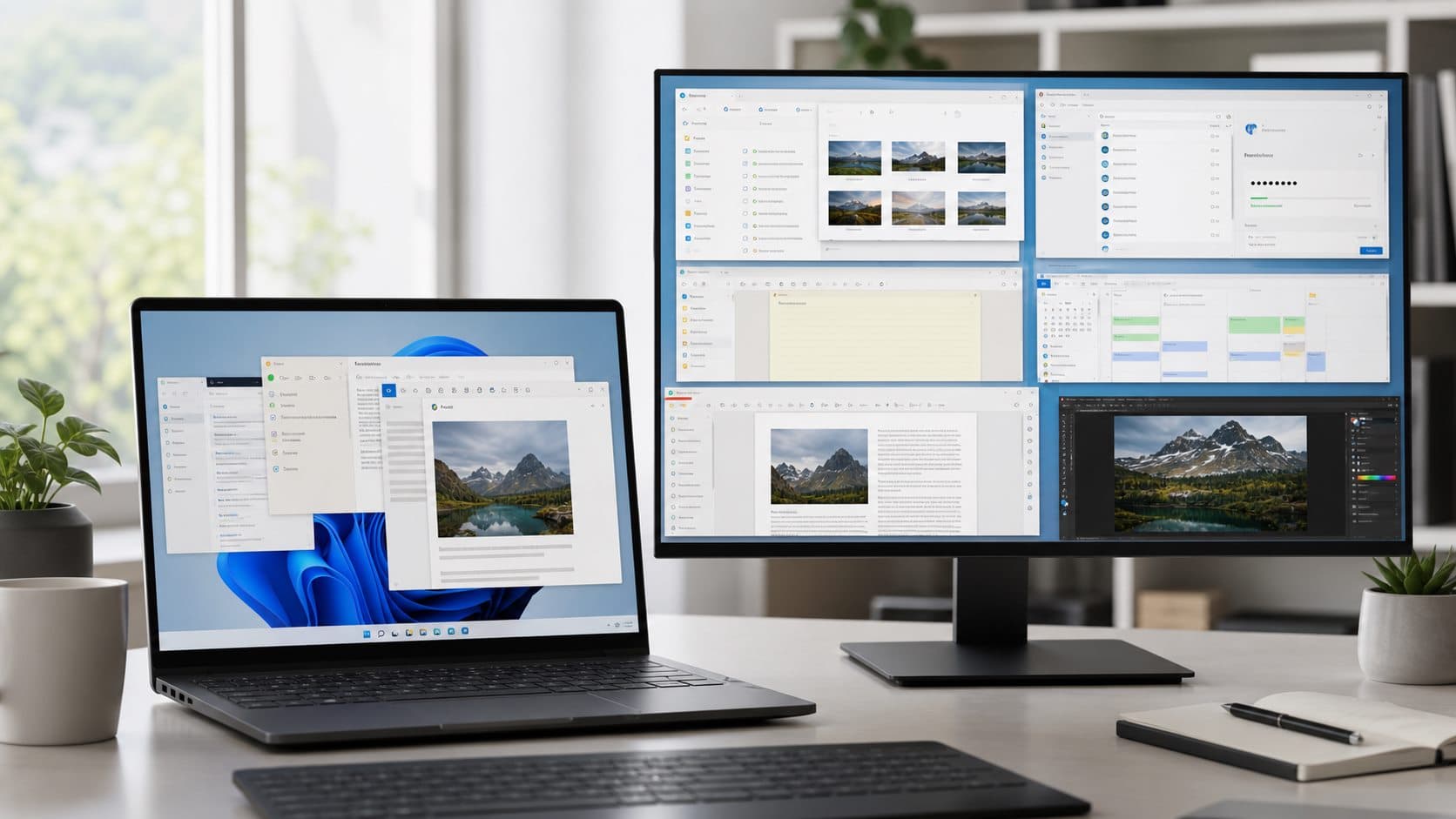
A useful Windows productivity setup does not need an expensive subscription. The right free apps depend on the files you exchange, the way you work, and whether you need cloud collaboration, offline access, or local data storage.
Quick answer
This list covers twelve established Windows applications for documents, email, notes, tasks, passwords, PDFs, file synchronization, text editing, media, and images. “Free” describes the listed desktop offering at the time of review; optional hosting, sync, support, or commercial services may cost extra.
Selection approach: each app has a clear purpose, an official download source, and a practical role in a Windows workflow. No benchmark ranking or invented testing result is used.
Before installing free productivity software
Download installers from the official project or the Microsoft Store listing published by the vendor. Check the license for business use, confirm how updates are delivered, and test important file formats with copies rather than originals.
A shorter tool list is usually easier to maintain. Start with the category that solves an actual problem, not every application below.
1. LibreOffice for desktop documents
LibreOffice includes Writer, Calc, Impress, and other desktop tools. It works offline and uses the OpenDocument formats by default. It can open and save common Microsoft Office formats, but complex macros, fonts, formulas, or layouts may not transfer exactly.
Choose it when: you want a complete offline office suite and can test compatibility before exchanging important files.
2. Thunderbird for email and calendars
Thunderbird is an open-source desktop email client with calendar and contact features. It supports standard mail protocols and can manage multiple accounts in one application.
Choose it when: you prefer a desktop client and your provider supports the required authentication method. Confirm organizational policies before adding a work account.
3. Obsidian for linked local notes
Obsidian stores notes as Markdown files in a local vault and supports links between notes. Optional first-party sync and publishing services are separate from the core application.
Choose it when: you want portable text files and are comfortable designing your own note structure. Plugins can access vault data, so install only those you trust.
4. Joplin for open-source notes
Joplin supports notes, notebooks, tags, attachments, and synchronization through supported services. Its end-to-end encryption features apply to synchronized data when configured according to the documentation.
Choose it when: you want an open-source note application with desktop and mobile clients. Set up recovery information and verify synchronization before relying on a single copy.
5. Taskwarrior for command-line tasks
Taskwarrior is a command-line task manager built around filters, projects, priorities, and recurring tasks. It is powerful but less approachable than a graphical task list.
Choose it when: keyboard-driven workflows and plain, scriptable task data matter more than a visual interface.
6. KeePassXC for local password management
KeePassXC stores credentials in an encrypted local database. Browser integration and passkey-related capabilities depend on the current release and configuration.
Choose it when: you want direct control of the password database and will maintain reliable backups. Protect the master password and keep recovery copies in separate safe locations.
7. SumatraPDF for focused document reading
SumatraPDF is a compact Windows reader for PDF and several other document formats. Its intentionally narrow interface makes it suitable for opening and reading files without a large editing suite.
Choose it when: reading speed and simplicity matter and you do not need advanced PDF editing.
8. Zettlr for long-form Markdown writing
Zettlr is an open-source Markdown editor aimed at long-form and academic writing. It supports citation workflows when paired with compatible reference data.
Choose it when: you write structured Markdown documents and want a desktop environment that can work with references.
9. FreeFileSync for folder synchronization
FreeFileSync compares folders and synchronizes changes according to a selected direction and rule set. Synchronization is not the same as versioned backup: a mistaken deletion can propagate if the job is configured that way.
Choose it when: you need repeatable folder copies and will test the comparison preview before running a job.
10. Notepad++ for text and code files
Notepad++ is a Windows text editor with tabs, search, syntax highlighting, macros, and a plugin ecosystem. It is useful for configuration files, logs, quick edits, and lightweight coding.
Choose it when: Windows Notepad is too limited but a full development environment would be unnecessary.
11. VLC for media playback and inspection
VLC plays a broad range of local and network media and includes conversion and playback controls. It can be useful for reviewing recordings, checking audio tracks, and capturing a frame.
Choose it when: you regularly handle media files from different sources. Download it only from VideoLAN or an official store listing.
12. GIMP for image editing
GIMP is an open-source image editor for retouching, compositing, resizing, and export. Its workflow differs from commercial image editors, and compatibility with proprietary project formats is not guaranteed.
Choose it when: you need capable raster-image editing without a subscription and can learn its interface.
How to choose the right combination
- File compatibility: test the documents, templates, macros, fonts, and export formats you actually exchange.
- Data location: decide whether local storage, third-party sync, or organization-managed cloud storage is appropriate.
- Maintenance: prefer actively maintained tools with a clear official update path.
- Security: minimize plugins, protect backups, and do not install repackaged downloads.
- Workflow fit: avoid keeping two tools that perform the same job unless there is a clear reason.
A practical starter stack
For general offline work, LibreOffice, Thunderbird, KeePassXC, SumatraPDF, and Notepad++ cover many common needs. Add a note system, synchronization tool, or image editor only when your workflow requires it. If Microsoft file exchange is central to your work or study, also compare the alternatives in Best Free Microsoft Office Alternatives.
Editorial review and accountability
Written and reviewed by Femica Maydinda Harend. Product features, licensing, system requirements, and optional paid services change. Confirm the current official page before installing or adopting a tool for organizational use.